

Upload Guide for Works of Space Design Category
设计宇宙内容中心
 ,发布时间2025-02-20 12:17:00





-
版权声明:本链接内容均系版权方发布,版权属于 设计宇宙内容中心,编辑版本版权属于设计宇宙designverse,未经授权许可不得复制转载此链接内容。欢迎转发此链接。
Works of Space Design Category
Upload Guide
Since its launch in 2018, the designverse platform website (www.designverse.com.cn) has advocated and adhered to a decentralized approach, allowing users to register accounts and upload design works independently. The designverse content center team is responsible for reviewing and selecting high-quality projects to be showcased on the website's homepage. After years of accumulation, as of now, the rate of user-submitted projects has reached 98.5%.
We sincerely welcome all design agencies, both domestic and international, to register on the platform's website, complete your agency’s profile, and submit past and latest projects online for free, including but not limited to completed works, conceptual designs, and non-winning proposals.
Works of Space Design Category
Upload Guide
1. Please enter www.designverse.com.cn, register an account or log in directly for registered users.
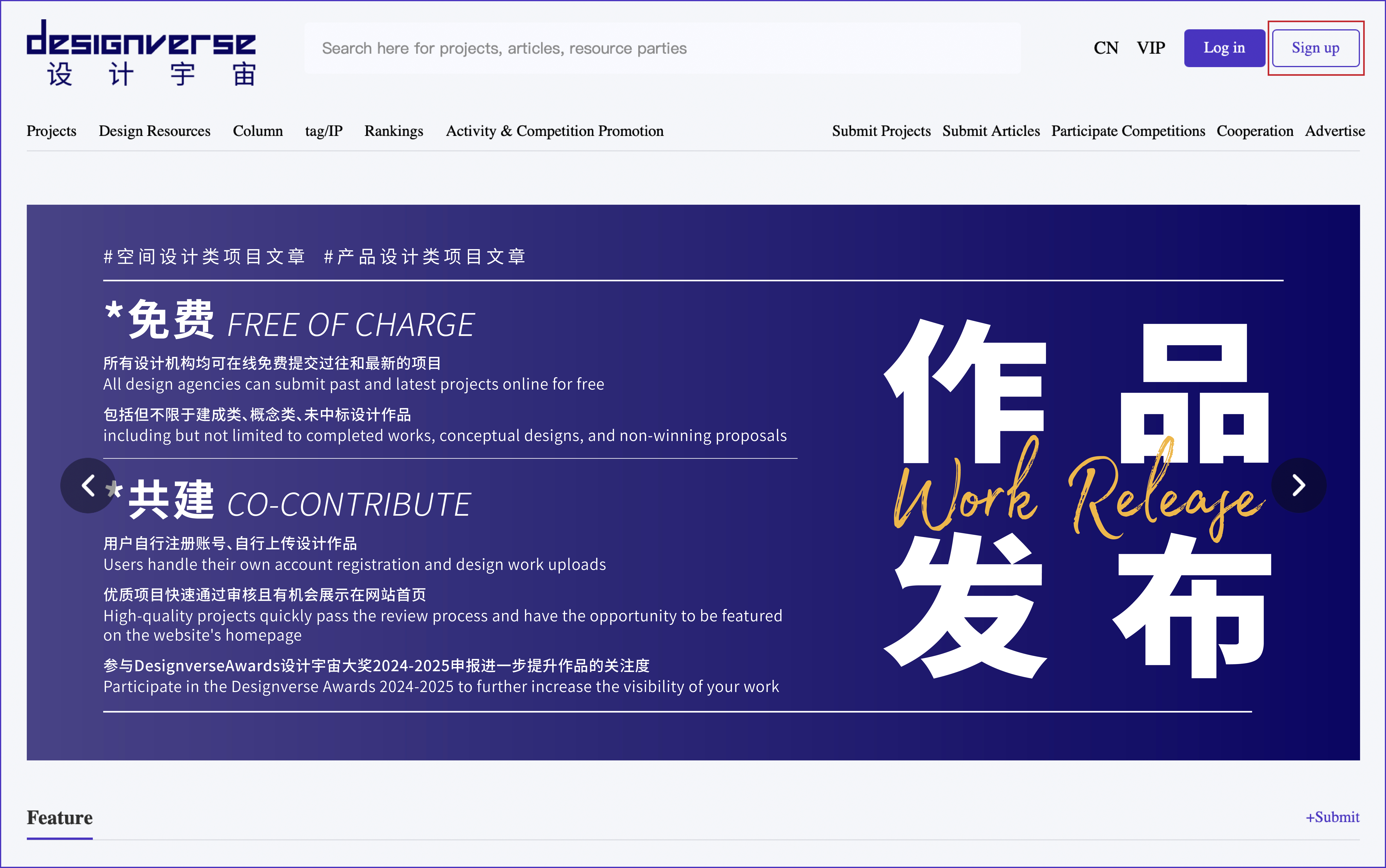
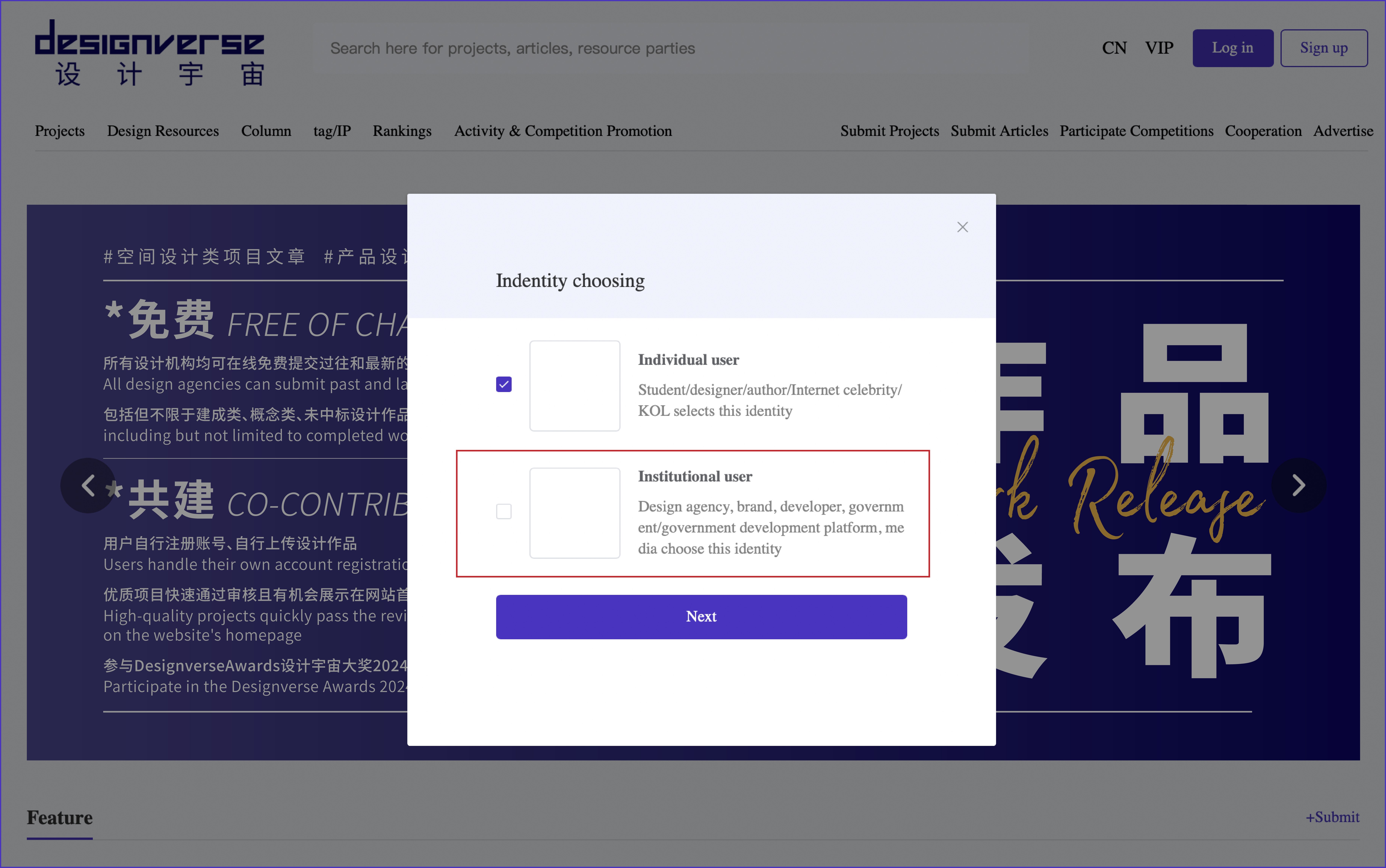
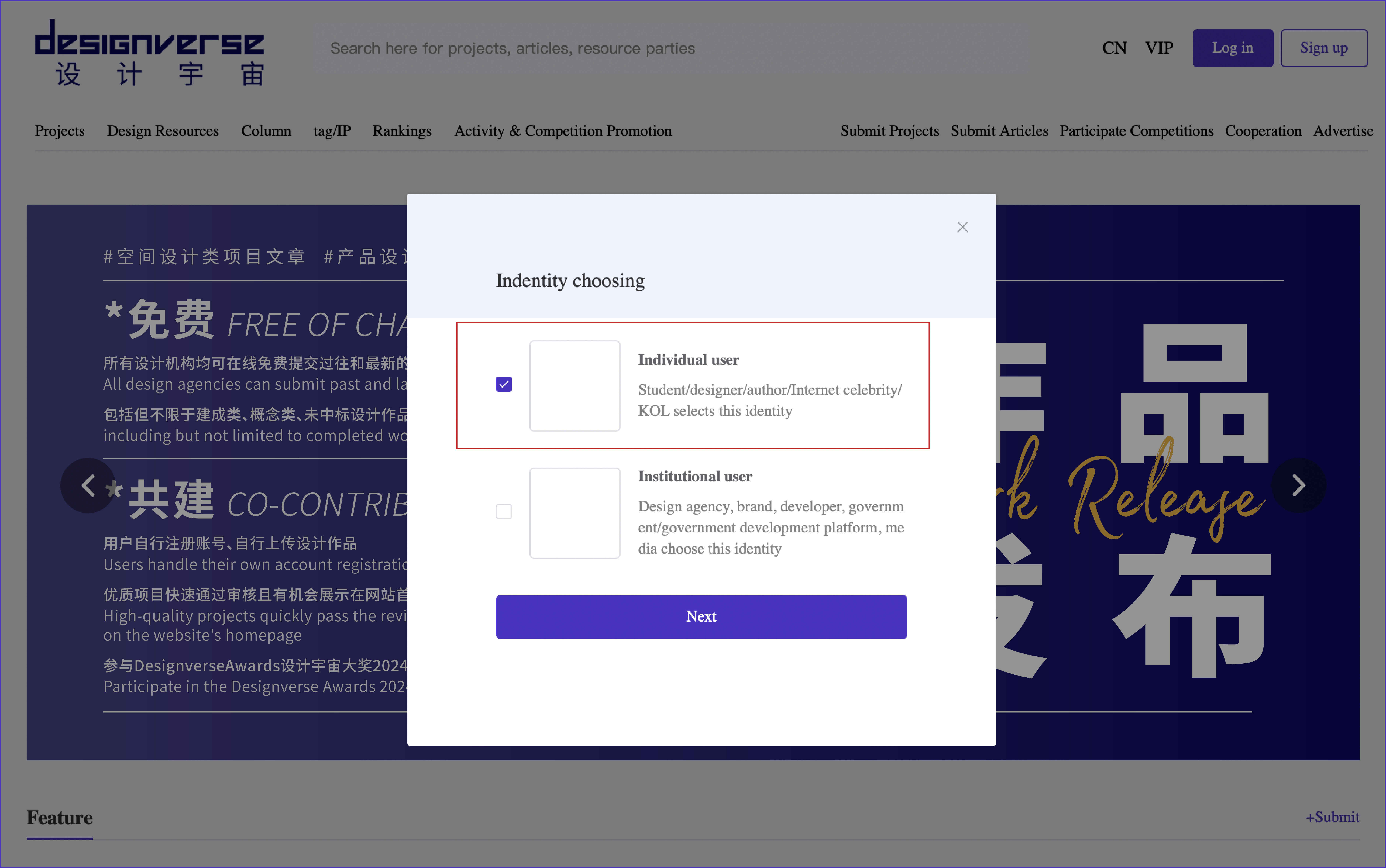
2. Identity Choosing
· "Organizational users" such as design and art institutions, development-related property owners, brands in various industries, public cultural and art institutions, media organizations, educational institutions, and non-profit organizations (charitable foundations), please click "Next" and fill in the basic information.
· Government representatives, developers' representatives, brand representatives, technical experts, design and art experts, academic representatives, public relations representatives, students, etc. should check "Individual User", click "Next", and fill in the basic information.
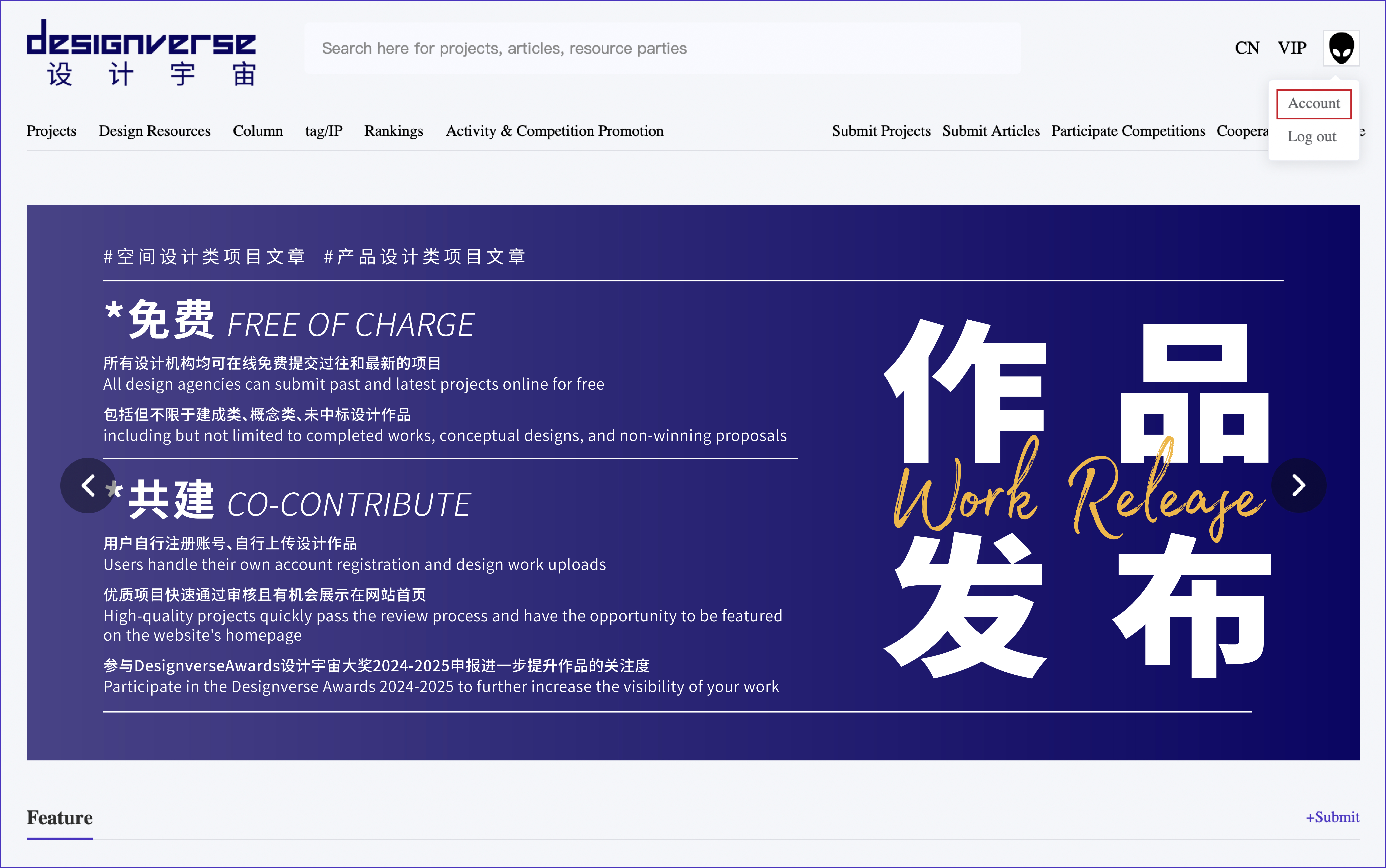
After completing the registration, return to the homepage of the website, log in, and then enter the "Account".
3. Click on the avatar icon in the left sidebar. Organization users should upload the brand/enterprise LOGO, while individual users should upload their personal public relations avatars.
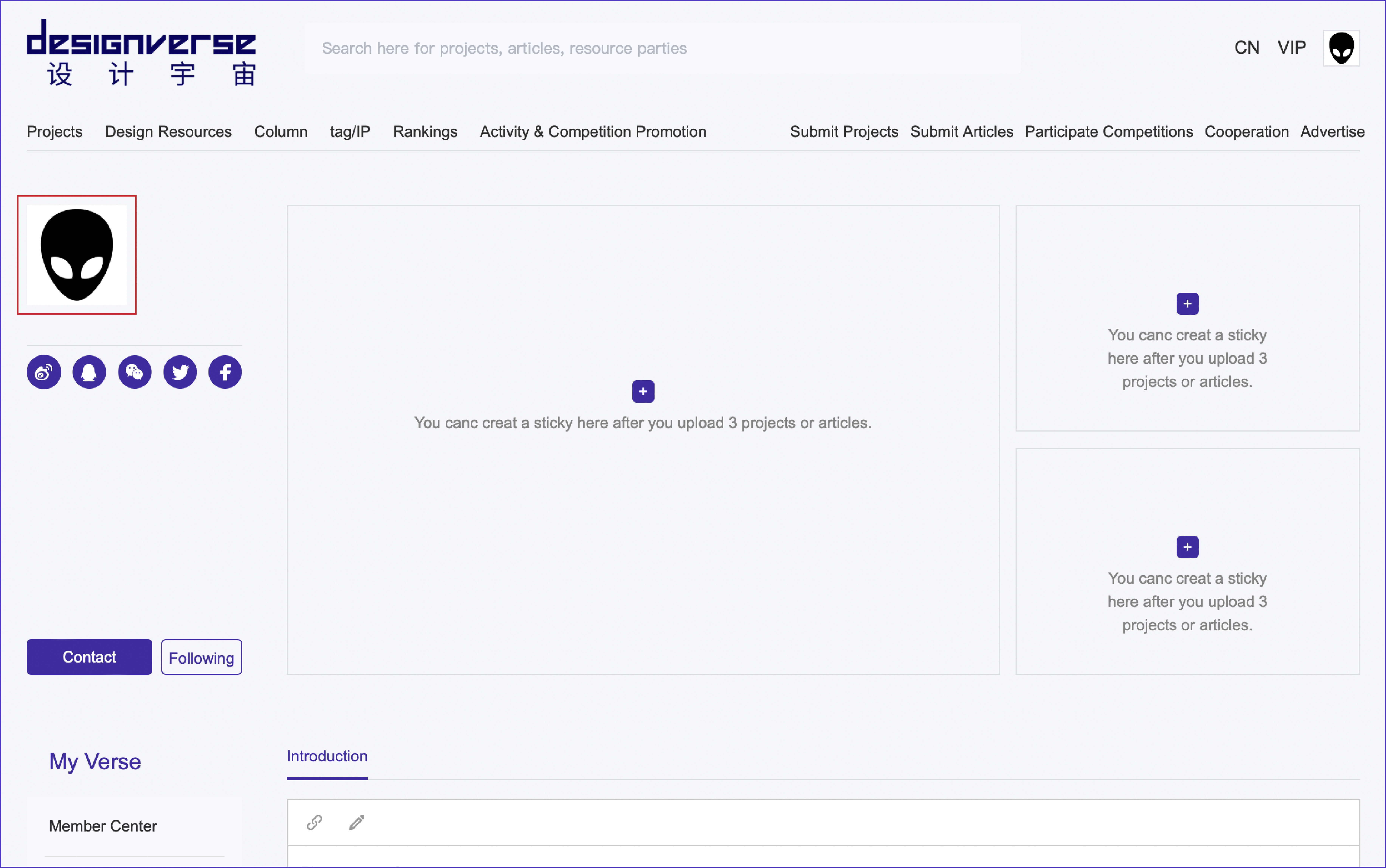
4. Click on "Profile" in the left sidebar respectively. It is recommended that for the first registration, simultaneously click on the "Member Center" to complete the "Identity Verification" and experience related services, such as releasing an unlimited number of "Contact Information" externally, accessing Designverse Ranking, etc.
Organization users should fill in the organization profile, basic information, and contact information in sequence. Individual users should fill in the personal profile, basic information, and contact information in sequence, and then click "Save". Click "EN" in the upper right corner to switch to the English page, and fill in the English version of the content to facilitate all platform users to learn more.
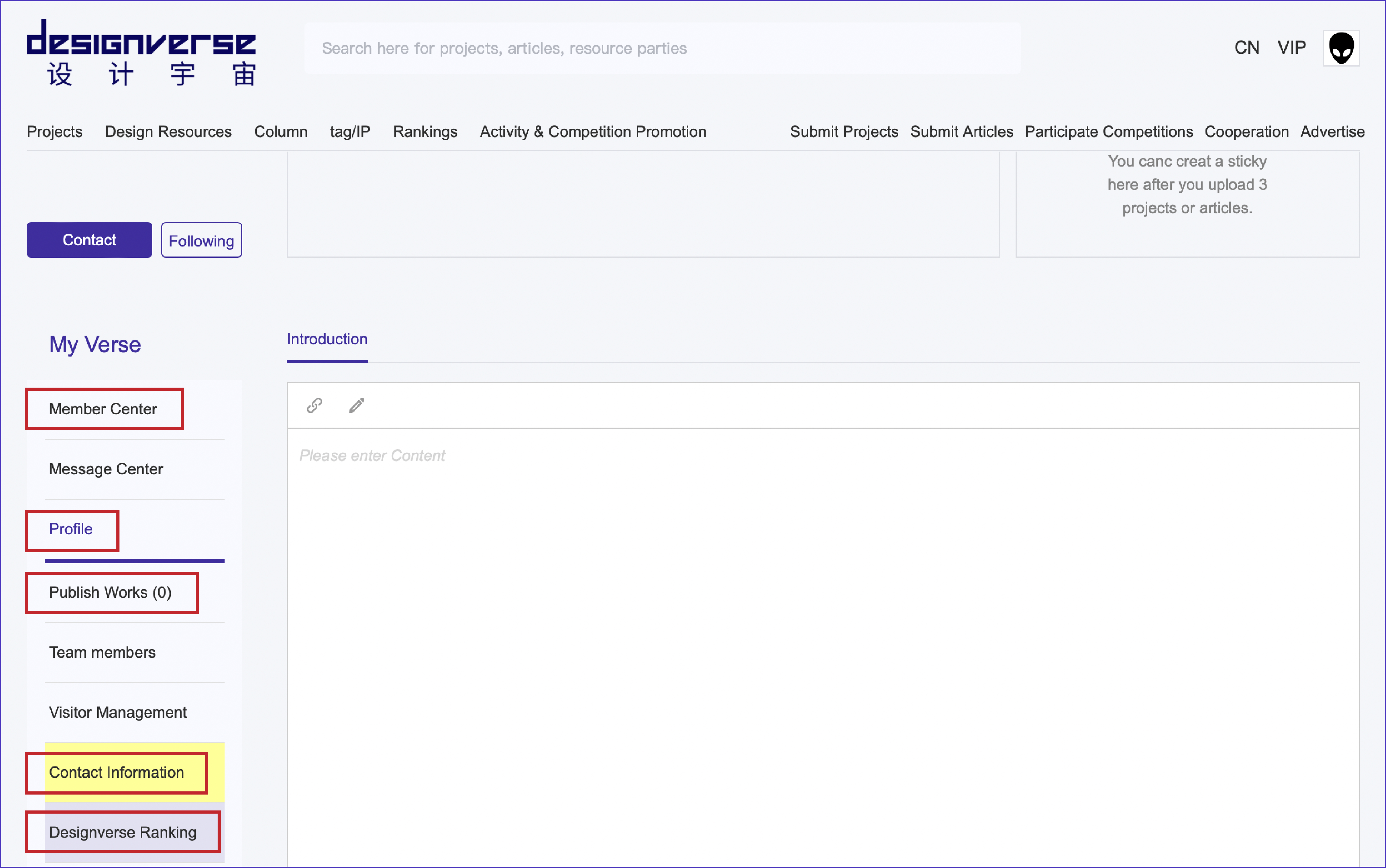
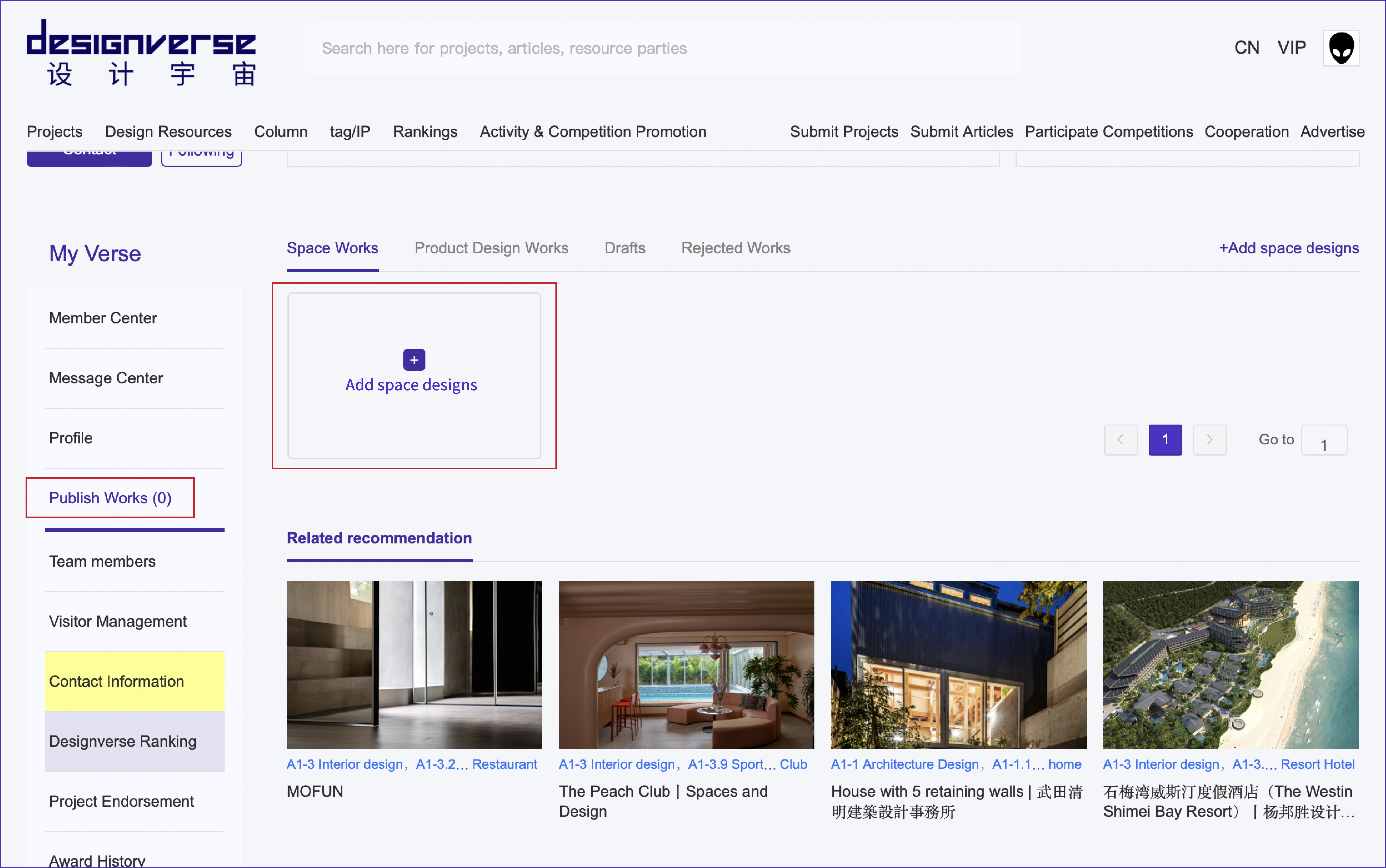
5. Click on "Publish Works" in the left sidebar, then click on "Space Works", and then click on "Add space designs" to enter the next page.
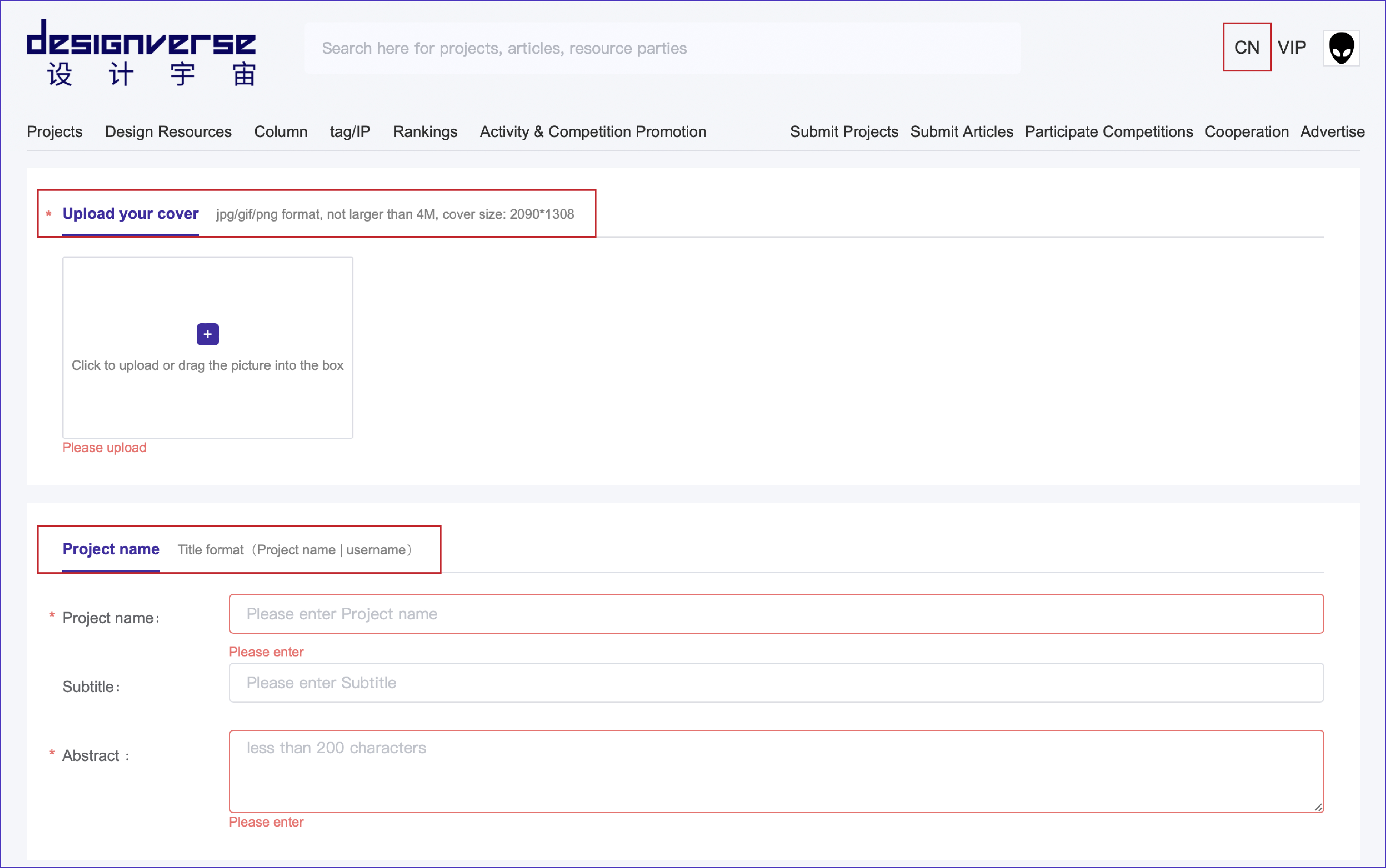
6. On the work upload page, upload the cover image in sequence (pay attention to the indicated image format, size and dimensions), fill in the project name and abstract. Click "EN" in the upper right corner of the web page to switch to the English page and fill in the content in English.
7. In the "Upload descriptive text and images" section, fill in the textual content of the project article. In the article, you can insert relevant project materials such as links, pictures, and videos at the required places:
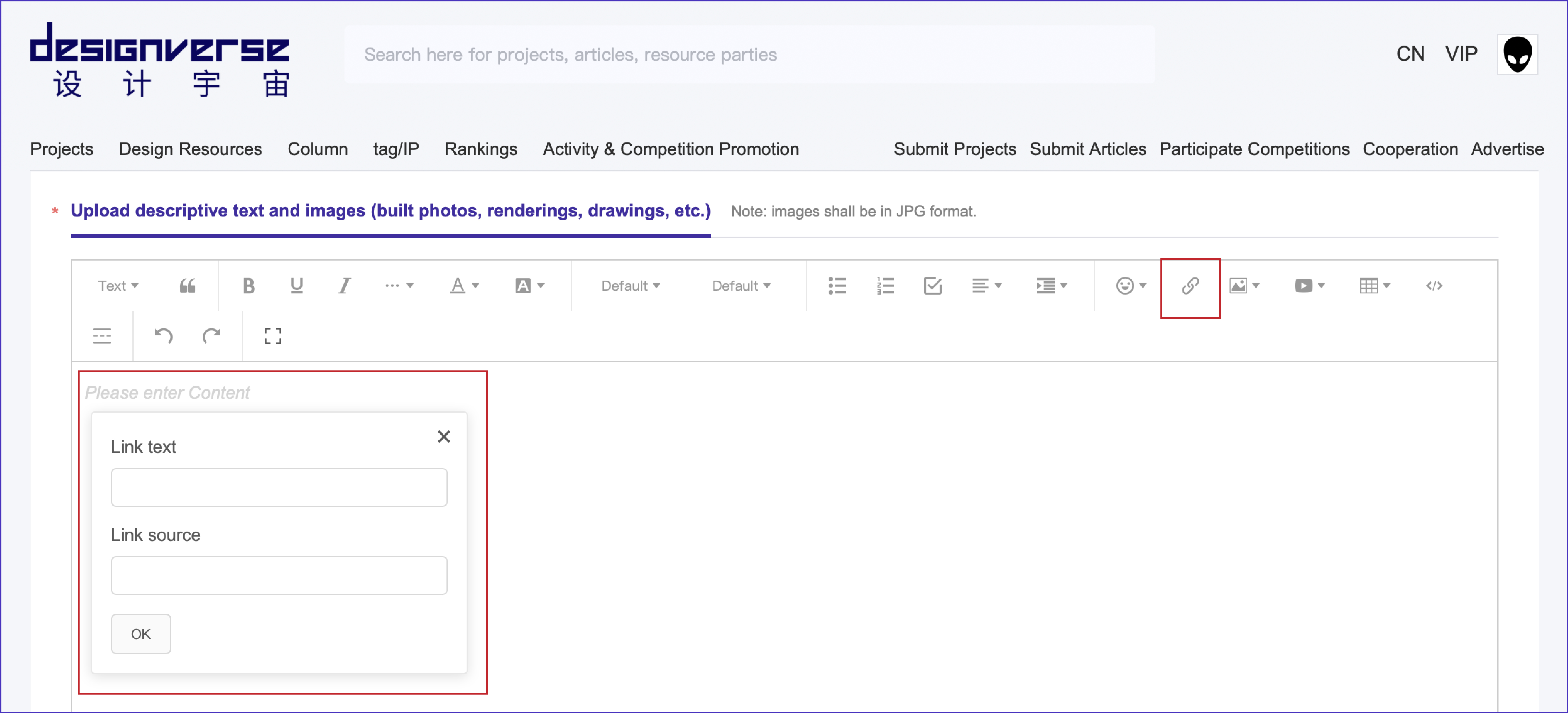
· Insert a link: Click on the "Insert link" icon, fill in the link name in the "Link text" field, fill in the link URL in the "Link source" field, and then click "OK".
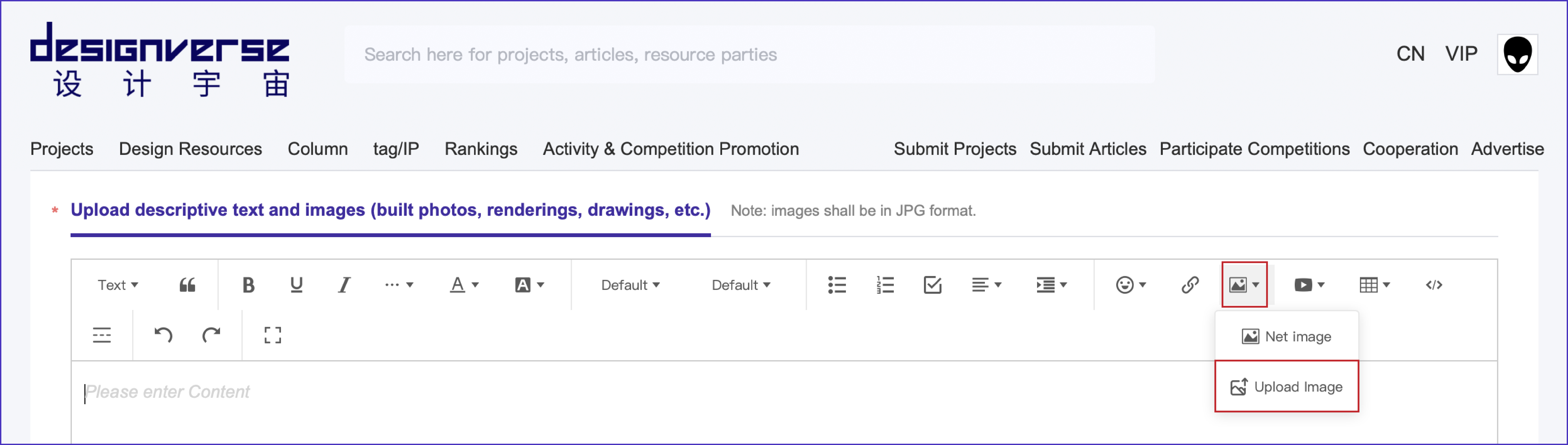
· Insert a picture: Click on the picture icon - Upload image, and then upload the project picture (the picture size should be 2090*1308, and the size should be less than 4M. GIF images are also supported).
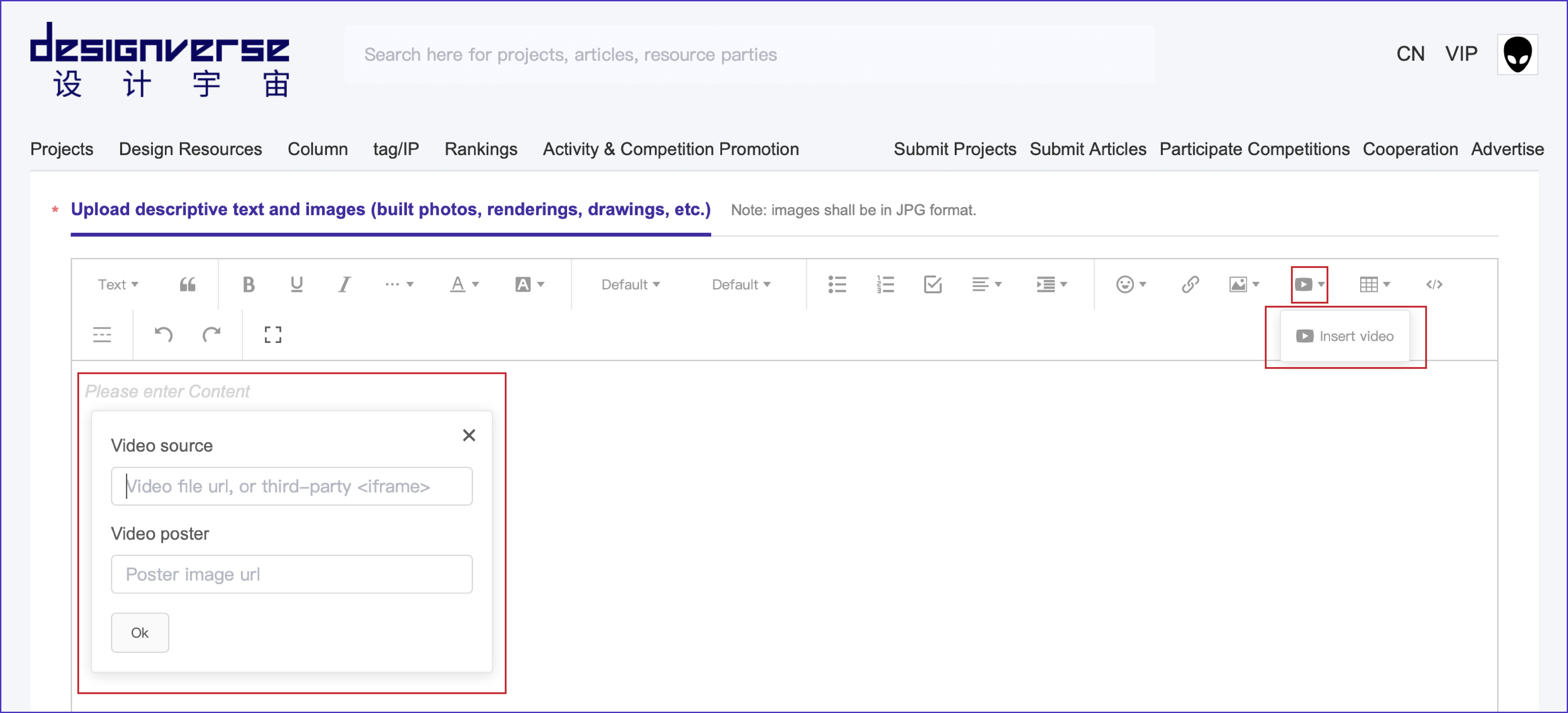
· Insert a video: Click on the "Insert video" icon, and fill in the video link embedding code in the blank fields of "Video source" and "Video poster" respectively (Please upload the video to platforms like YouTube, Vimeo, Tencent Video and Bilibili in advance to generate the video link embedding code), then click "OK".
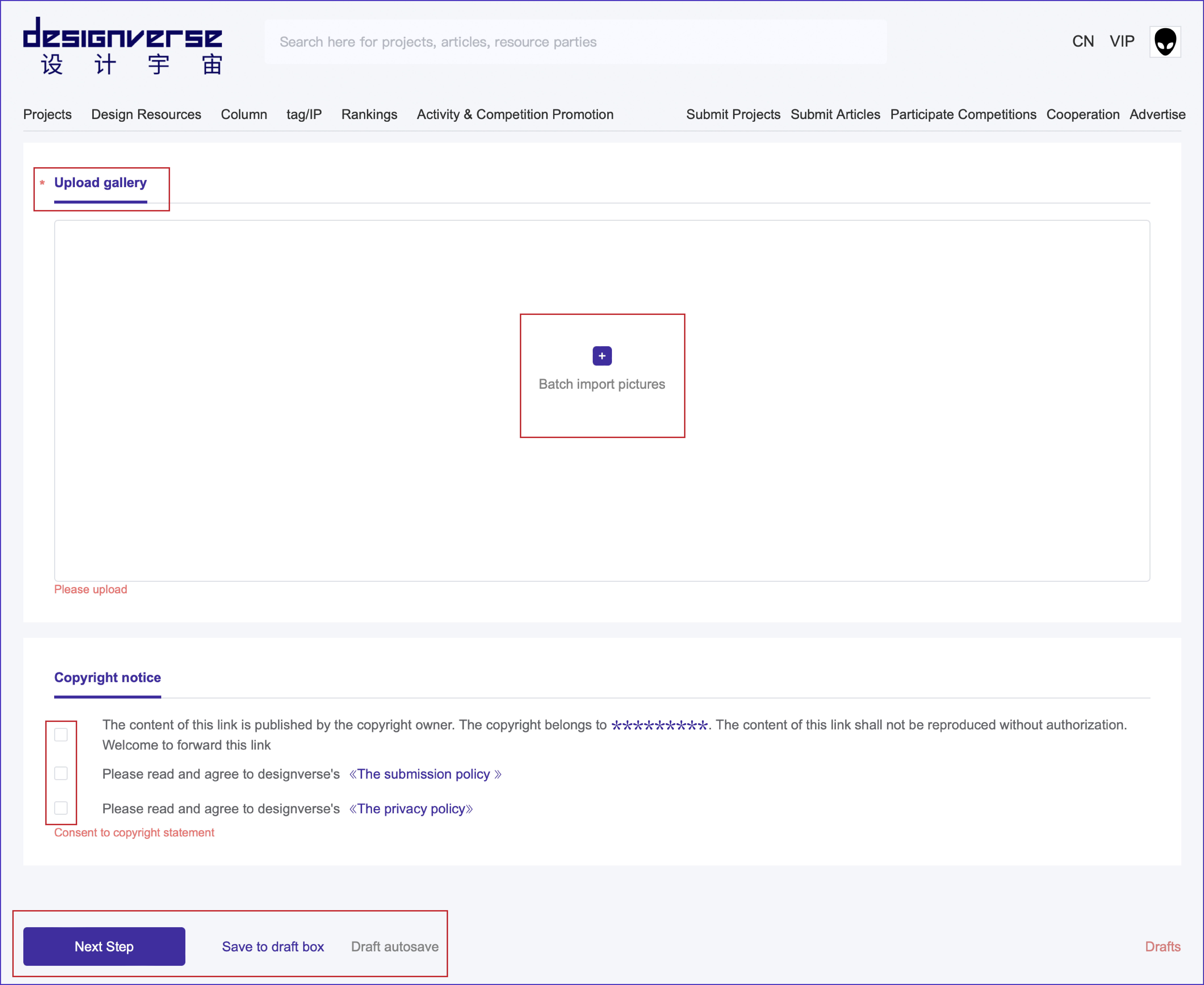
8. In the "Upload gallery" section, click on "Batch Import Pictures" to upload project pictures in batches (the picture size should be 2090*1308, and the size should be less than 4M) for centralized display. Tick the three items in the "Copyright notice" section, and then click "Next Step" (or "Save to draft box").
9. Enter the "Basic project information" page and supplement the basic information such as the owner, project location, and floor area respectively. Click "EN" in the upper right corner to switch to the English page and fill in the content in English.
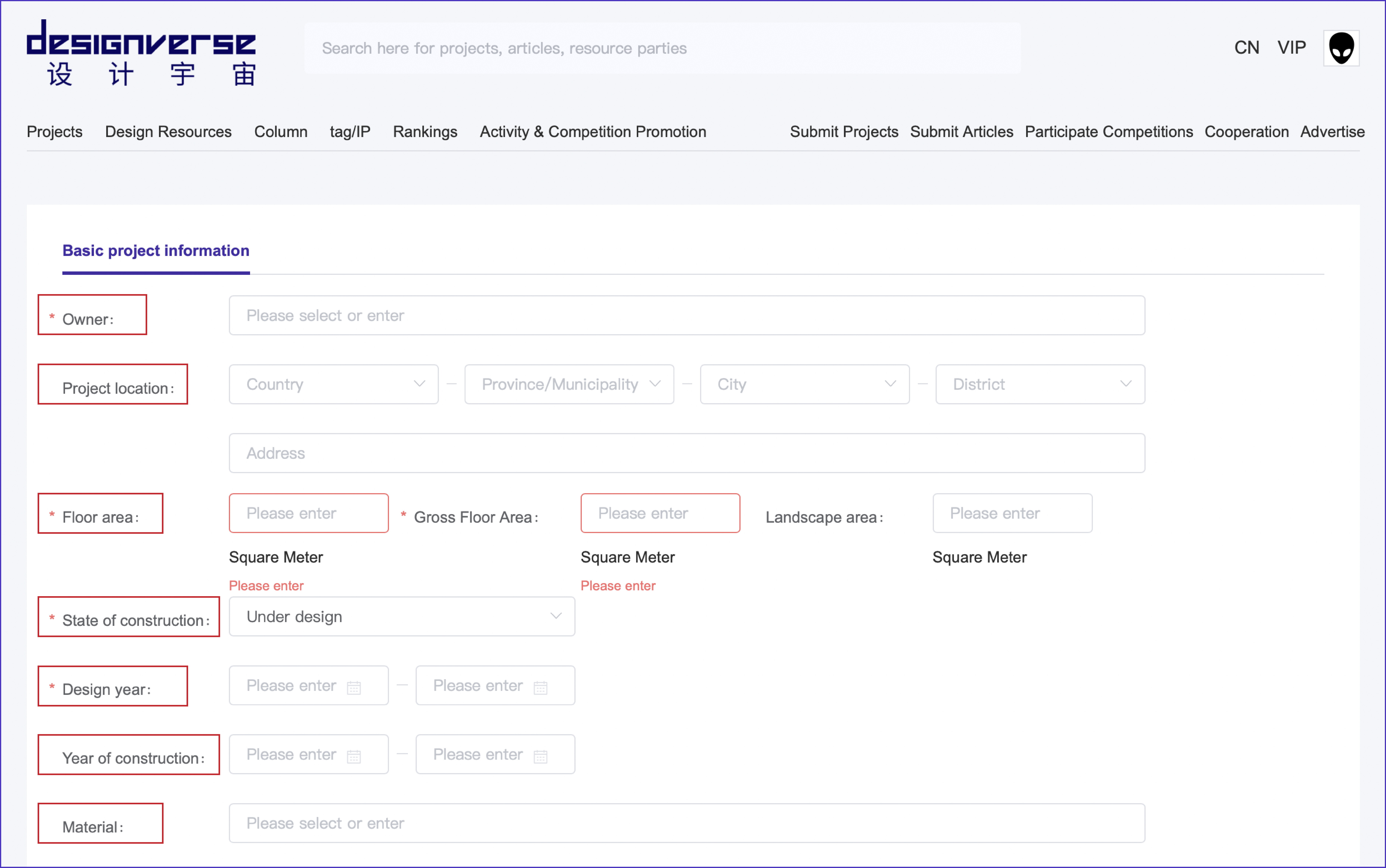
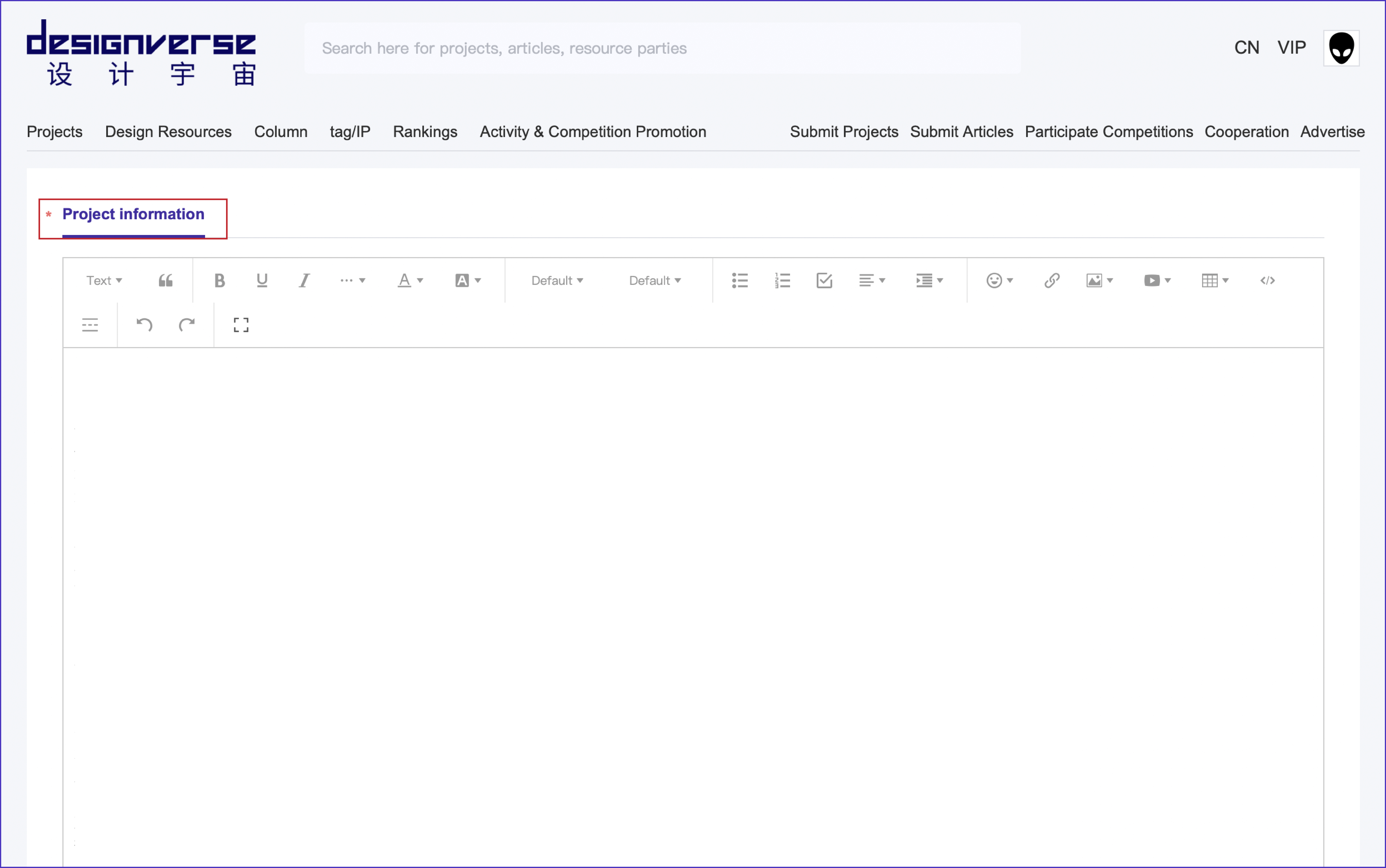
10. Complete the "Project information", including design team, name of the owner (client), name of the partner, etc., project time (design start, construction start, completion), main structure/construction method, number of floors, materials, the total project cost, etc., and names of the media that have publicly reported on this project. Click "EN" in the upper right corner to switch to the English page and fill in the content in English.
*Note: The more complete the information filled in on this page, the greater the probability that the project will be associated with and searched for on the platform's homepage.
11. Select the design category of the project (required). In the "Add tags" section (required), enter keywords related to the project. The more accurate the tag is, the greater the probability that it will be associated with and searched for on the platform's homepage.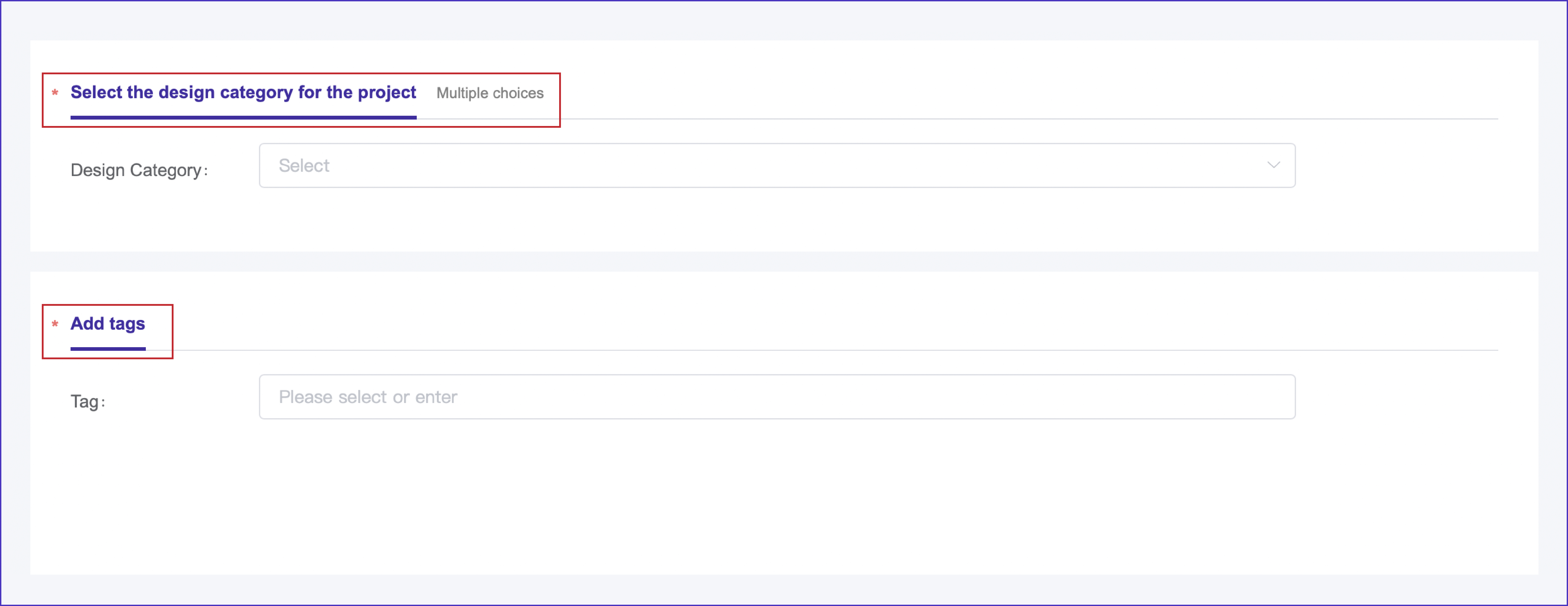
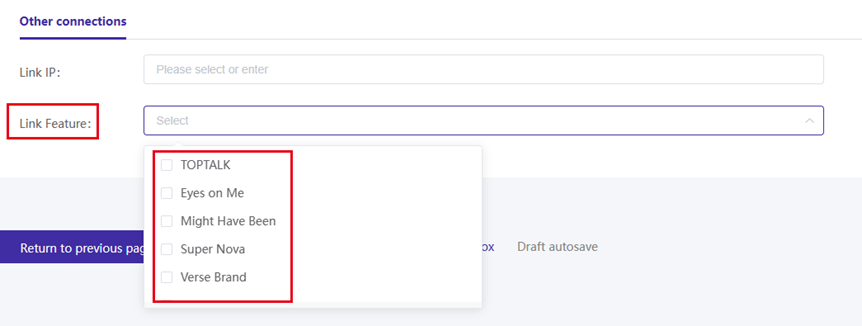
12. In the "Other connections" section, you can select the name of the IP or column associated with this project. After filling in the content on this page, click "Submit" or preview it first and then submit. Thus, the process of uploading the project article is completed, and you just need to wait for the platform's review. 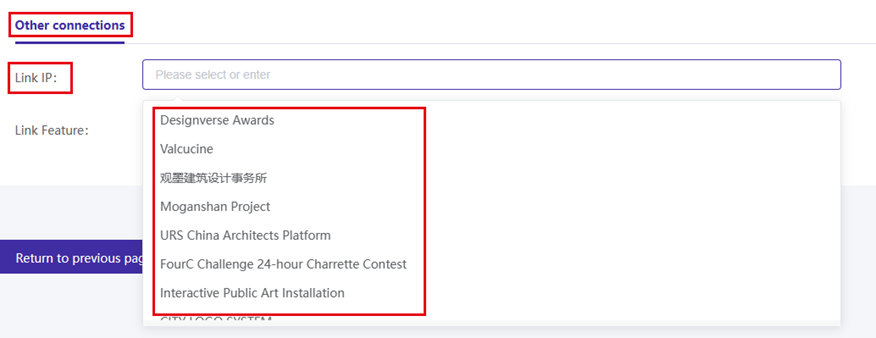

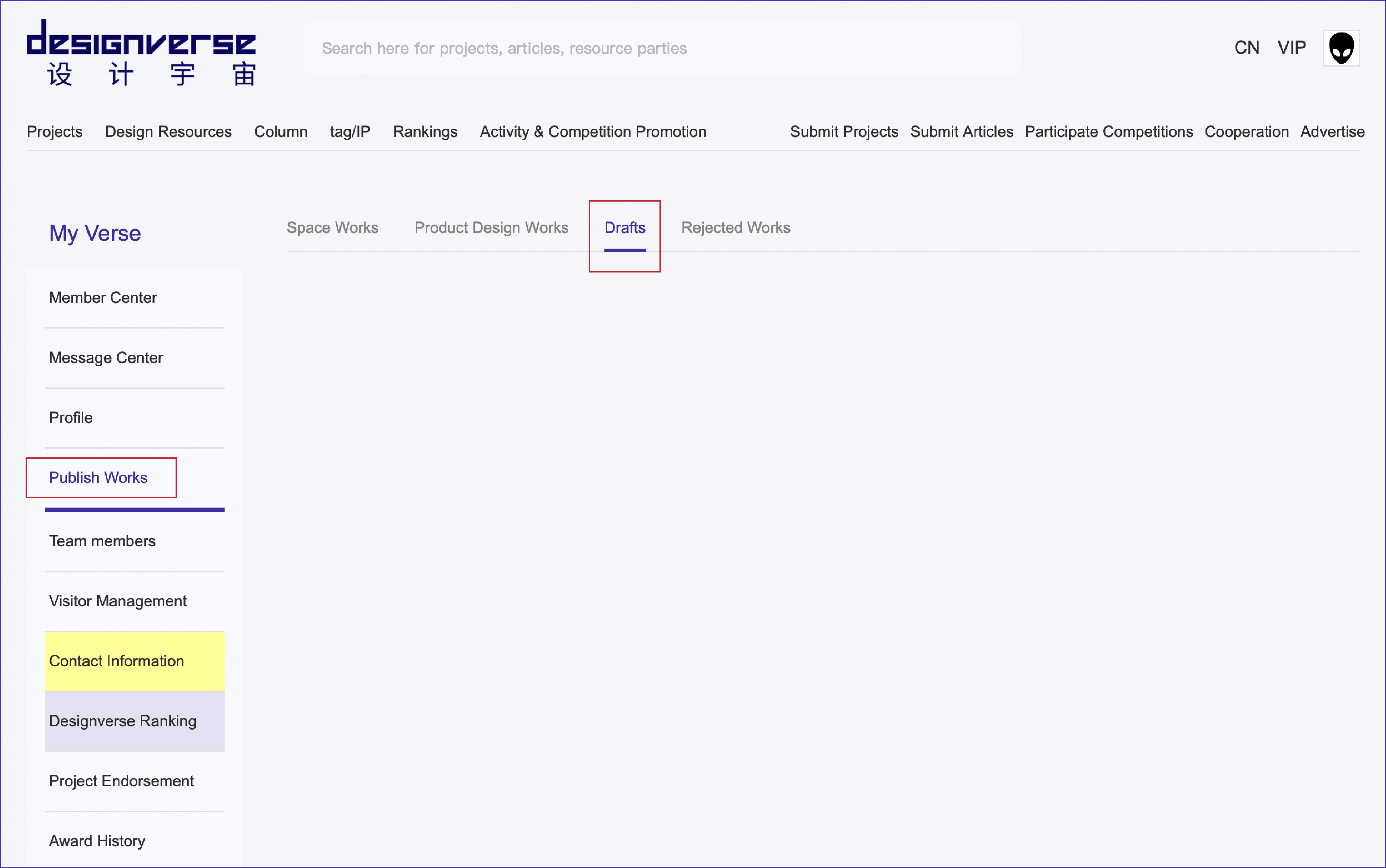
13. Both the submitted projects and articles can be edited and revised on the "My Verse - Publish Works - Drafts" page.
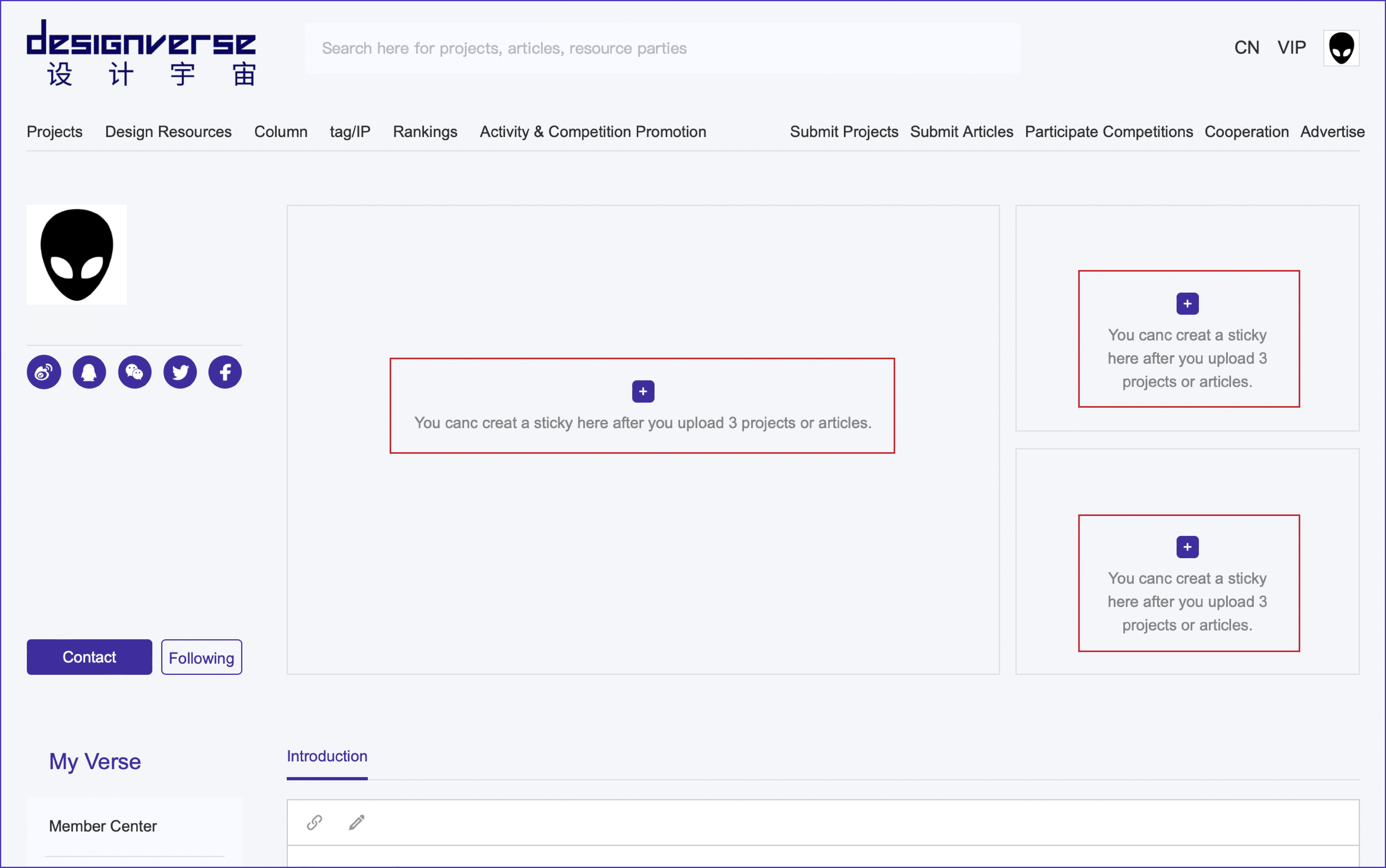
14. When you have uploaded more than three projects, you can, on the Account page, customize the arrangement of the three pinned project articles by clicking the "+" signs in different places.
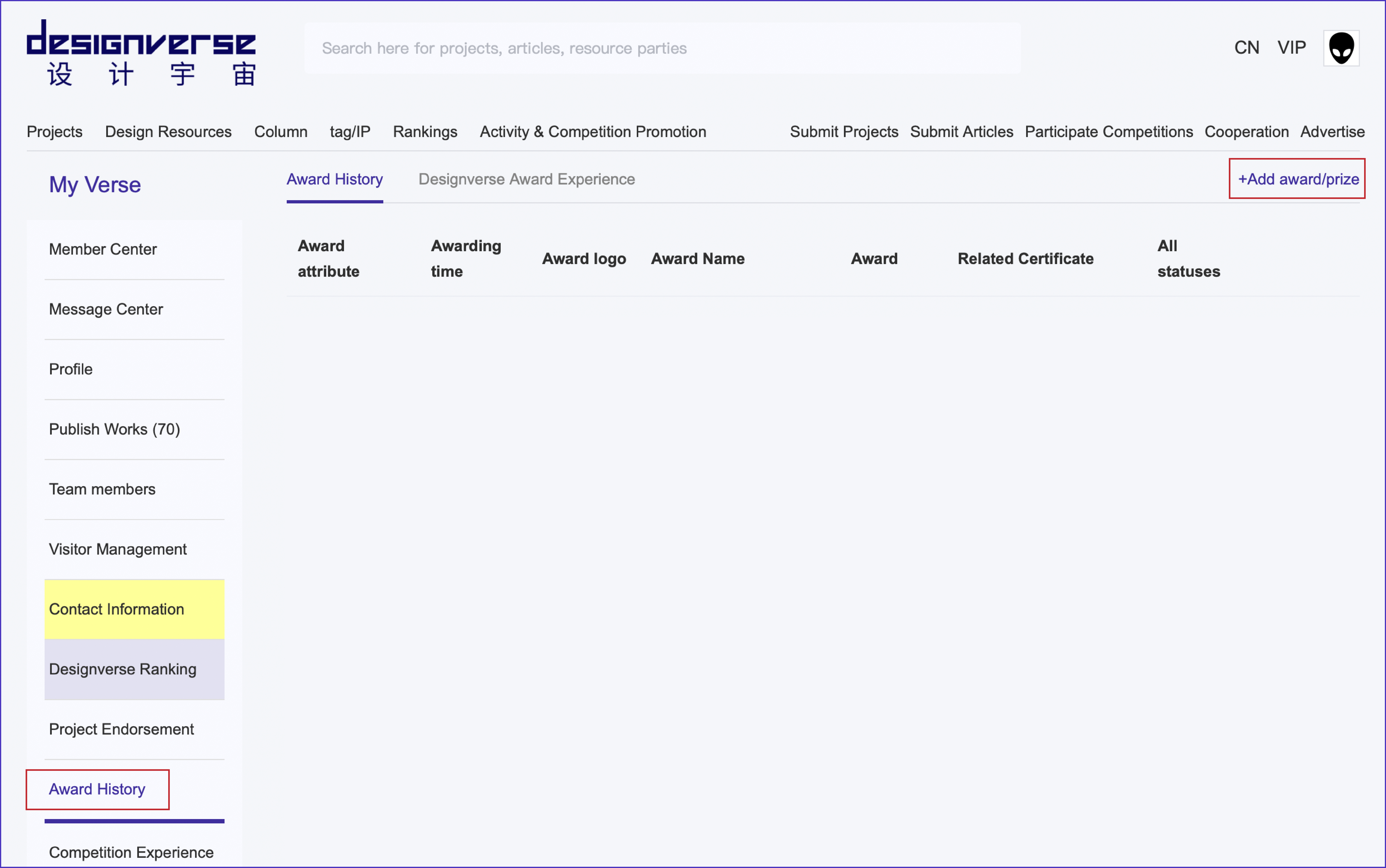
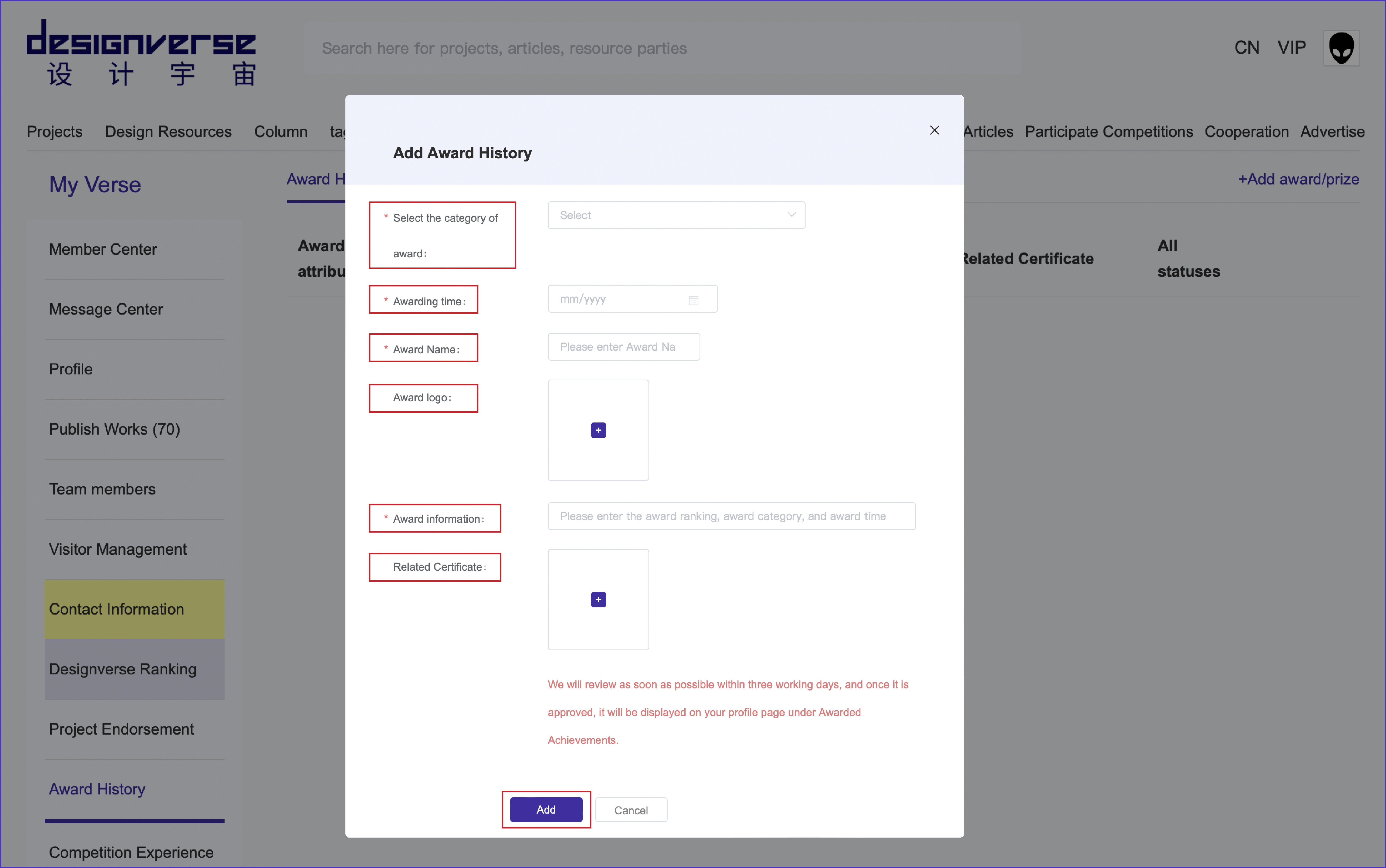
15. Click on "Award History" in the left sidebar, and then click on "+ Add award/prize" to enter the award information filling page.
16. On the "Add Award History" page, select the category of award, fill in award-winning time and award name , upload the logo of the awarded prize and the relevant certificate, click "Add" to submit, and then wait for the review.

ETERNITY丨APOLLO Architects & Associates
Cyclesure啡驰空间丨平介设计
Bedding | MAST

Designverse Awards 设计宇宙大奖 × MATSU 玛祖铭立:办公单元战略合作正式达成

How Designverse Empowers Personal Brand Building for Designers

designverse设计宇宙如何助力设计师个人品牌建设


Heidentempel Pavilion | Christoph Hesse Architects

昆山玉山书房设计,探索新型复合型书店的多种可能性丨GLC(中国)

HAY!YoungBirds! 2020年亚洲优秀青年大赛三强作品《削笔刀》设计师访谈

订阅我们的资讯
切勿错过全球大设计产业链大事件和重要设计资源公司和新产品的推荐
联系我们
举报
返回顶部